A free, open-source Windows app for manual multiboxing. It opens your WoW clients and puts every window in its place: up to 8 clients, on one monitor or several.
Setup: pick how many clients, pick a layout, and every open WoW window snaps into its slot.
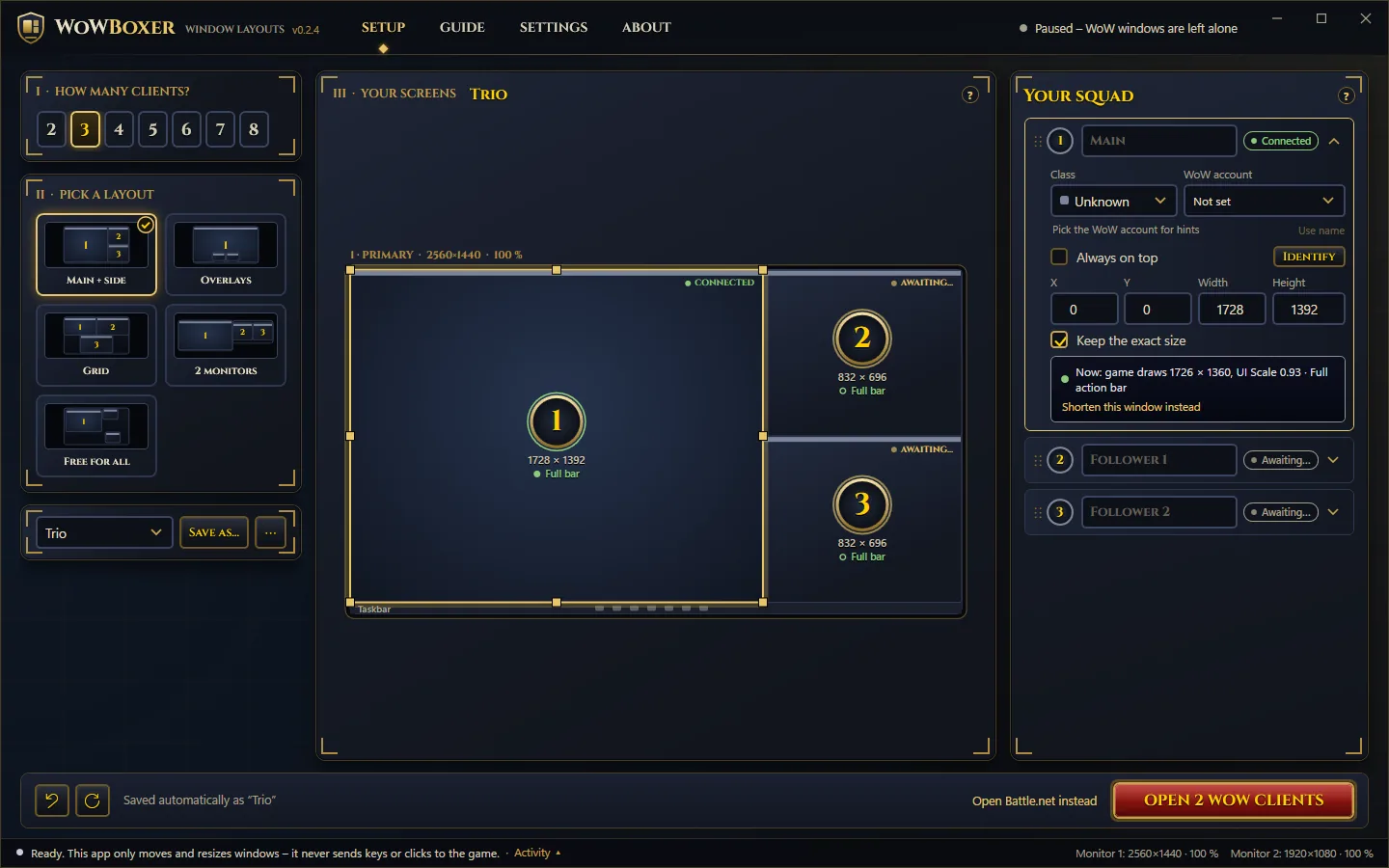
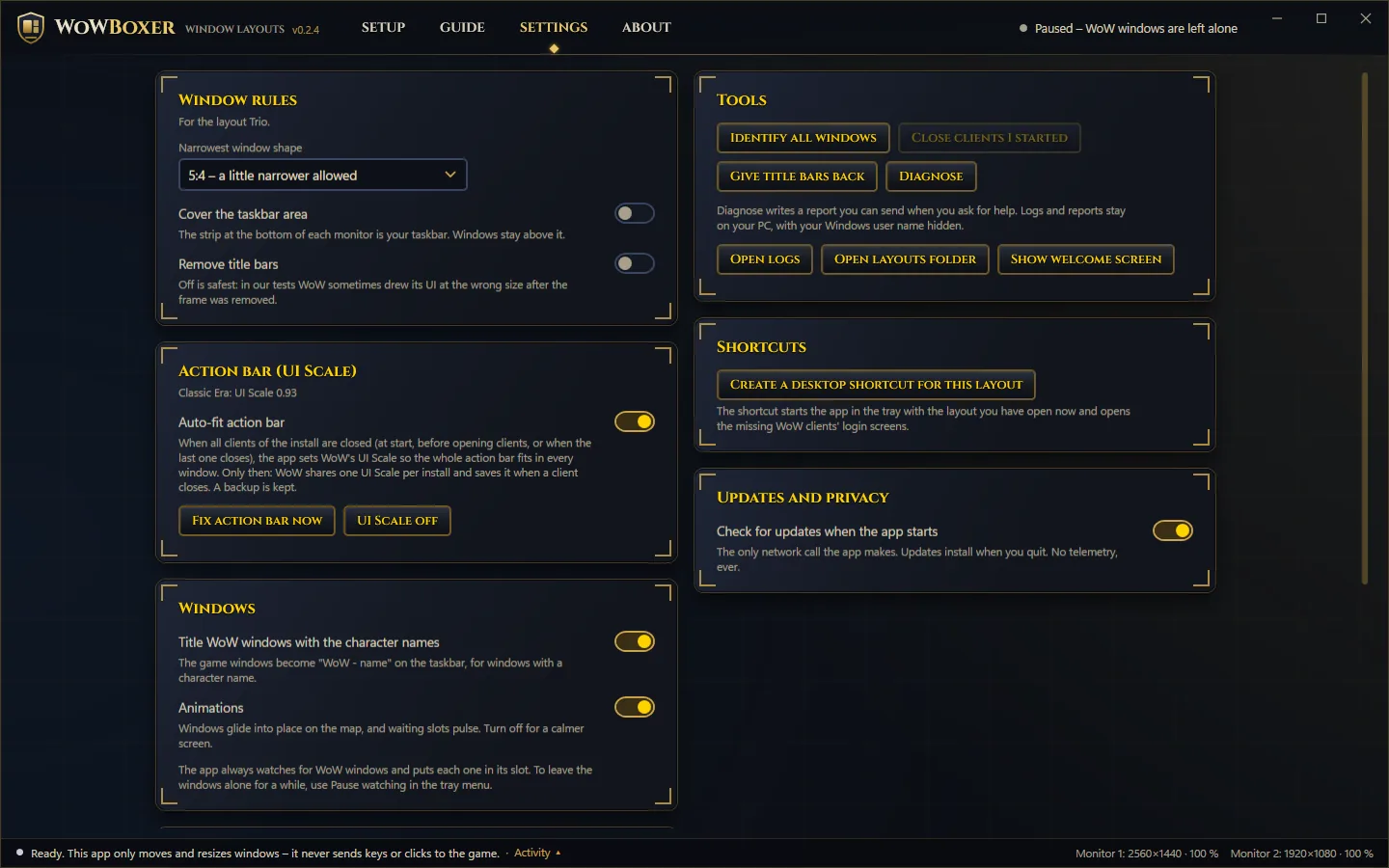
Per window: position, size, always on top, and whether the action bar fits.Settings: window rules, the action-bar fix, tools, shortcuts and updates.
It manages windows, nothing else. It moves, sizes and pins your WoW windows and, if you turn them on, sets Windows' hover-to-activate setting and one UI Scale value (with a backup). It never sends keys or clicks to the game, never reads game memory, never logs in for you and sends no telemetry.
Screenshot coming
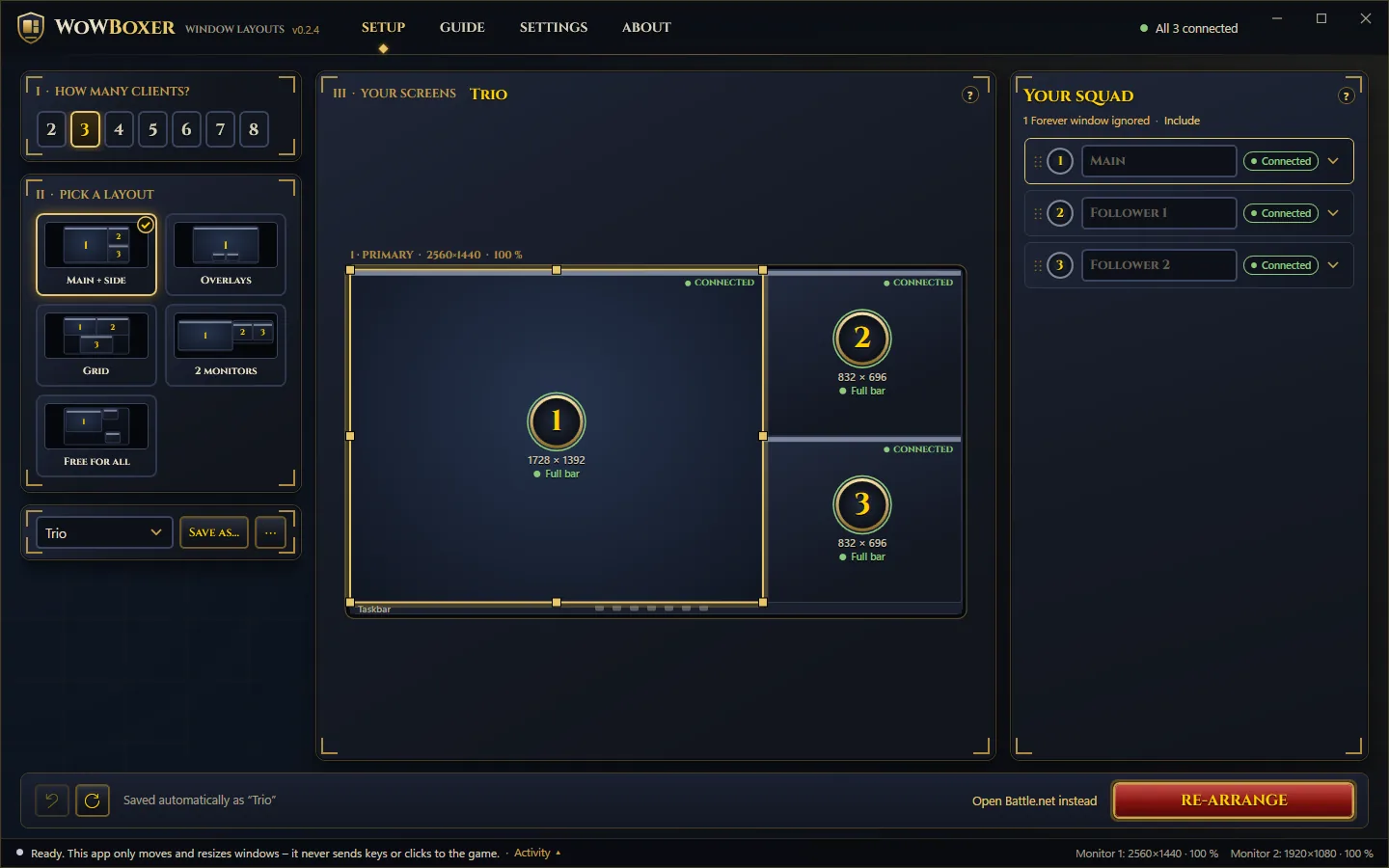
Screenshot: The WoWBoxer Window Layouts app: client count, layout cards and a to-scale map of the monitor with three windows.
What you need
Windows 10 or 11 (64-bit).
The .NET 10 Desktop Runtime. The installer adds it if it is missing.
WoW set to Display Mode: Windowed. All clients of one install share this setting. Why.
First start in 5 steps
The app opens stopped: it leaves every window alone until you press Start placing windows. Stop (or the tray menu) leaves your windows alone again.
I · How many clients? Choose 1–8. One client gives you a normal single window.
II · Pick a layout. Click a card. The map updates at once.
Main + side – the main window big, followers stacked beside it. The best start.
Overlays – the main window fills the screen, followers float on top of it.
Grid – equal windows.
2 monitors – the main window on one screen, followers on the other.
Free for all – start from scratch and drag.
III · Your screens. Fine-tune on the map: drag, resize, snap. Undo (Ctrl+Z) always works. Everything saves by itself.
Open your clients. Press Open N WoW clients to get one WoW login screen per empty slot, or Open Battle.net instead and press Play for each account. You always log in yourself.
Check the order. Each row goes from Awaiting… to Connected as its window arrives. Wrong order? Drag the rows, or use Identify. From then on the main button is Re-arrange (F5), which puts every window back in its slot.
Every WoW install works: Classic Era, Forever, Retail and so on. The squad follows one install; windows from another install are left alone, and Include adds them.
Your squad
Under Your squad there is one row per window.
Name and class. Set them once. The app never guesses a class: it cannot see inside the game.
WoW account. Which game account plays in this slot. The list comes from your WoW folder and stays on your PC. "Last played here" is only a hint.
Order. Drag a row to move that character, and its window, to another slot.
Identify shows each window's number on top of it for a few seconds.
Always on top. Click the pin on a follower so the main window never covers it. Leave the main window itself off "on top".
Hover to activate
This is how WoWBoxer players switch windows: the window under the mouse becomes the active one. Point at a follower, press your key, point back at your main window. It is a built-in Windows setting ("Activate a window by hovering over it with the mouse") and sends nothing to the game.
The app has a switch for it under Your squad, in Settings › Switching windows and in the tray menu.
Delay (0–500 ms). About 30 ms is recommended: a window only becomes active when the mouse rests on it, not while it passes over.
Bring window to front when activated. Leave it off with overlays and Always on top, so the followers stay visible.
The first change saves your own Windows values. Restore my original Windows settings in Settings puts them back; you can have the app do it when it quits, and uninstalling always does it.
Action bar
Small windows can cut off the ends of WoW's action bar. Each window on the map gets a dot: green means the whole bar fits.
Auto-fit action bar (on by default) sets the one UI Scale your layout needs whenever all clients are closed, and keeps a backup. WoW stores UI Scale once for all clients of an install, so the main window's interface shrinks a little too. That is a limit of the game, not the app.
Display mode
Set Display Mode to Windowed once, in the game: Options › Graphics. "Windowed (Fullscreen)" maximises itself after every move, so the app can't place it. Forever starts in that mode. While you are there: Render Scale 100% and Max Background FPS 30. Graphics settings are shared by all clients of one install.
Keep the title bars on (the default). In our tests, removing them made WoW draw its action bars at the wrong size. Settings has a tool to give title bars back if they are ever gone.
Share and save layouts
Your layout saves by itself. Save as… next to the saved layout keeps it as a new layout. The ⋯ menu beside it has:
Rename… and Delete this layout.
Copy layout code (WBX1:) – a short text code you can paste in chat or on the forums.
Paste a layout code… and Open a layout file… – use someone else's layout.
Save as a file… – keep your layout as a file.
Capture my current WoW windows – arranged them by hand? Save that as a layout.
In Settings › Shortcuts, Create a desktop shortcut for this layout gives you one click that starts the app in the tray with that layout and opens the missing WoW clients' login screens.
Settings
Window rules and Switching windows (hover to activate).
Action bar – the UI Scale and Auto-fit.
Title WoW windows with the character names.
Tools – Identify all windows, give title bars back, and Diagnose…, which writes a report of your monitors, WoW windows and settings. It hides your Windows user name. It can contain character names from window titles, so look it over before you share it.
Updates – the app checks GitHub for updates when it starts. That is the only network call it makes.
What it does, and never does
It does
It never does
Opens WoW login screens or Battle.net
Logs in for you, types or stores passwords
Moves, sizes and pins windows
Sends keys, clicks or mouse moves to the game
Turns Windows' hover setting on or off, when you click
Changes any Windows setting without your click
Writes one UI Scale value when you ask, with a backup
The app ships with wbx, the same engine without a window:
wbx start      start Battle.net, then place each WoW window as it opens
wbx arrange    place the WoW windows that are open now
wbx diagnose   write a report and try one placement
wbx info       show monitors, slots and open WoW windows
wbx capture    save the current arrangement as a layout
wbx restore    give WoW windows their title bars back
Run wbx help for every option.
Installing: "Windows protected your PC"
The installer is WoWBoxer-Setup.exe from GitHub Releases (the download button on this page always gives you the newest one). It installs for your Windows user only, needs no administrator rights and updates the app by itself when you quit it (you can turn that off in Settings). If the .NET 10 Desktop Runtime is missing, Setup installs it from Microsoft first; that one step asks for Windows' permission. Prefer no install? Use WoWBoxer-Portable.zip (no auto-update).
Our code signing is not approved yet, so Windows SmartScreen may warn you about the installer. It does that for every new, unsigned program.
Click More info.
Check that the file name matches what you downloaded from our GitHub Releases page. To be thorough, compare its SHA-256 checksum with the one in SHA256SUMS.txt.
Click Run anyway.
Prefer not to? Build the app yourself from the source code. The steps are in the README.
Known limits
Classes and accounts can't be detected from outside the game. You set them once per slot.
One UI Scale per WoW install (a game limit).
The installer is not code-signed yet, so Windows SmartScreen warns you. What to do.
What's new
v0.3.4 · 29 Oct 2026
Hover to activate is the WoWBoxer way to switch windows (owner's decision). The old notices next to the switch
(Setup › Your squad, Settings › Switching windows) are gone, and so is the advice about other ways to switch
windows (Guide, What's new, README, known issues). In their place, the facts: hover to activate is a Windows setting; it
sends nothing to the game; WoWBoxer never sends keys or clicks.
Behaviour is unchanged: off by default, only changed on your click, your own Windows values kept and restored
(Settings › Restore, on quit if chosen, always on uninstall).
Website links now open https://wowboxer.com/ (the site's new domain) instead of the Vercel address: the Guide,
the first-run screen, About and the rules link next to the switch.
The README links to the website, and the GitHub repos list it as their website.
Install: download WoWBoxer-Setup.exe below and run it (no admin rights needed; it installs the .NET 10 Desktop Runtime if missing and keeps itself up to date). Portable: WoWBoxer-Portable.zip. Checksums: SHA256SUMS.txt.
The app only moves and resizes windows. It never sends keys or clicks to the game. Full history: CHANGELOG.md.
v0.3.4 – Hover to activate is the WoWBoxer way to switch (2026-10-29)
Hover to activate is the WoWBoxer way to switch windows (owner's decision). The old notices next to the switch
(Setup › Your squad, Settings › Switching windows) are gone, and so is the advice about other ways to switch
windows (Guide, What's new, README, known issues). In their place, the facts: hover to activate is a Windows setting; it
sends nothing to the game; WoWBoxer never sends keys or clicks.
Behaviour is unchanged: off by default, only changed on your click, your own Windows values kept and restored
(Settings › Restore, on quit if chosen, always on uninstall).
Website links now open https://wowboxer.com/ (the site's new domain) instead of the Vercel address: the Guide,
the first-run screen, About and the rules link next to the switch.
The README links to the website, and the GitHub repos list it as their website.
v0.3.3 – Fix: the app did not start (2026-10-28)
v0.3.2 closed right away on start. The Settings screen used the tooltip box style that only the Setup screen
defined, so the main window could not be built. The style now lives in the shared theme. Installed v0.3.2 cannot
update itself (it never gets far enough to check), so install this version with WoWBoxer-Setup.exe.
CI and the release now start the built app and fail if it does not open its main window (tools/smoke-start.ps1),
so a start-up crash like this cannot be released again.
v0.3.2 – Start/Stop and hover to activate (2026-10-28)
Released at the owner's request before the live test on real WoW windows (needs the PC idle). Hover to activate
is off by default; its Windows values are unit-tested only so far.
Start / Stop placing windows. The app opens stopped and leaves every window alone until you press Start
placing windows (the main button while stopped). While started, a ■ Stop button sits next to it; the tray menu
has the same Start/Stop. Found by the owner: opening the app during a Retail session moved the Retail windows into
the layout. Desktop layout shortcuts (--start) and --resume start at once; Settings › Windows › "Start placing
windows when the app opens" (off by default) brings back the old behaviour. Opening clients from the app also starts.
Hover to activate, built in: a switch for Windows' own "Activate a window by hovering over it with the mouse"
(Ease of Access) in Your squad on the Setup tab, in Settings › Switching windows, in the tray menu and in the
Guide's "Switch between windows" chapter (it replaces the button that opened the Windows setting). With it: a
Delay slider (0–500 ms, 30 ms marked as recommended, written when you let go) and Bring window to front when
activated (off keeps floating overlays visible; best with "Always on top"). Per user, no admin
(SystemParametersInfo with SPIF_UPDATEINIFILE | SPIF_SENDCHANGE, so it is saved and applies at once). Changes
made outside the app show up within a second. Off by default; the app never changes it on its own.
Your own values are kept: the first change saves your Windows values (on/off, delay, bring to front).
Settings › "Restore my original Windows settings" puts them back; "Restore them when WoWBoxer quits" (off by
default) does it on quit; uninstalling always does it (Velopack uninstall hook).
Notice next to the switch (WoW tooltip style) explaining that hover to activate is a Windows feature, not part of
WoW, with links to the Guide chapter and the website's rules page. (Replaced in v0.3.4 by a short factual line.)
Website links point to the live site (wowboxer-site.vercel.app) instead of a placeholder.
New app-wide slider style (gold track, marked values).
v0.3.1 – update test (2026-10-28)
A small release to check that installed copies of v0.3.0 update themselves.
Docs: the release file list in docs/releasing.md matches what a release really contains.
v0.3.0 – first public release (2026-10-28)
The first public release. Same app as v0.2.4 (plug and play), now installable from GitHub Releases with auto-update.
Install:WoWBoxer-Setup.exe (stable link: /releases/latest/download/WoWBoxer-Setup.exe). Installs per user
without admin rights and fetches the .NET 10 Desktop Runtime from Microsoft if it is missing. Also
WoWBoxer-Portable.zip and SHA256SUMS.txt.
Updates: installed copies update themselves from GitHub Releases (applied when you quit). A beta channel for
prereleases exists; stable installs never see betas.
Open source: README, CONTRIBUTING, SECURITY, CODE_OF_CONDUCT, issue/PR templates, updated privacy notes,
code signing policy (SignPath Foundation application prepared; this release is unsigned).
Release pipeline: notes from this file, stable file names, checksums, draft-then-publish, website notification.
Highlights since the first builds (details below): layouts for 1–8 clients on one or more monitors, a to-scale
monitor map, automatic placement of every new WoW window, Auto-fit action bar for Classic Era, always-on-top per
window, layout sharing (WBX1: codes), tray, desktop shortcuts, Diagnose, and the wbx command line.
Earlier builds (private)
v0.2.4 – plug and play (2026-10-27)
Owner: "it works well, but too much is going on". Before/after: docs/screenshots/setup-before-v0.2.4.png,
setup-after-v0.2.4.png (+ -details, settings-after-v0.2.4.png).
Always watching: the app always waits for WoW windows and puts each new one in the next free slot (placed again
for 30 s while WoW loads); a closed window frees its slot, the others keep theirs; a window that already sits in a
slot keeps it. The "Move WoW windows live" switch, "Apply to open windows", "Start squad", "Stop watching" and the
start checklist are gone. Pause watching lives in the tray menu (and --pause / --resume, also sent to a running
copy); while paused nothing is moved or kept on top.
Status instead of steps: each slot on the map has a ring round its number (pulsing = Awaiting…, green =
Connected, amber = Placing… / Moved) and a label; each squad row has the same chip. Title bar: "Awaiting clients ·
1 of 3 connected" → "All 3 connected" (dot: pulsing gold / green / amber / grey when paused).
One primary button: "OPEN N WOW CLIENTS" (login screens for the empty slots only, from the open clients' install,
else the last used one) → "AWAITING CLIENTS 1/3" → "RE-ARRANGE" (snap everything back, also F5). "Open Battle.net
instead" link next to it. Undo/Reset are icon buttons; "Saved automatically as …" stays.
No game selector: every WoW install is treated the same (Classic Era, Forever, Retail, PTR …), found by its install
folder. With windows of several installs open the squad follows the install with the most windows (tie: it stays
with the one it follows; at the start the one opened first); the others are left alone with a notice "1 Forever
window ignored · Include". Layouts no longer belong to a game. UI Scale, Auto-fit and account hints follow the
squad's install.
Less on screen: "Full action bar" switch gone (Auto-fit action bar does it, on by default); the map shows the
monitors in use; Window rules, Action bar (UI Scale) and Tools (Identify all, Close clients I started, title bars
back, Diagnose) moved to Settings; Saved layout is a compact dropdown with Save as… and ⋯ (Rename, Delete, share,
import, capture); the help line is a "?" tooltip; the activity log opens from the status bar.
Squad rows: one line per window – drag handle, number in the class colour, name (optional), pin, status chip,
▾. The ▾ details hold class, WoW account (+ last-played hint), Always on top, Identify, X/Y/W/H, Keep size and the
action-bar line.
1 client = normal play: the client numbers now go 1–8. Picking 1 makes one window fill the main monitor (no multiboxing) without closing the app; other open clients are left where they are. Back to 3 (or Undo) and the squad returns.
Typing a name in a squad row no longer shows the faded placeholder ("Main", "Follower 1") under the text until it is saved.
Changing a name, class or "on top" no longer re-arranges every window (only a change of the windows' places does).
Fixes found while testing: an open row closed by itself after a moment (a focus style trigger undid the selection –
now a focus handler keeps it); a window closed while being placed was reported as "WoW runs as administrator";
extra windows were named after the squad's game.
New tools: tools/plug-and-play-check.ps1 (19 checks with fake WoW windows on monitor 2, tools/fakewow/FakeWow.cs);
ui-sweep.ps1 now needs the app started with --pause.
v0.2.3 – owner's test of v0.2.2 fixed (2026-10-27)
One main screen: Squad is merged into Setup – clients, layout, saved layout and window rules on the left, the map
in the middle, "Your squad" on the right (rows per window: number, name, class, account, status, pin, Identify, drag
⋮⋮ to reorder). Selecting a row selects the window on the map and opens its details inline (X/Y/W/H, Always on top,
Keep size, action bar). Start with Battle.net / Login screens, Apply and Start squad in the footer; tools, start
checklist and activity at the bottom of the squad panel. Tabs: Setup · Guide · Settings · About.
Auto-fit action bar (default on, Settings and the action-bar box): whenever no client of the install runs – app
start, before Start squad, when the last client closes, or after a layout change – the UI Scale the layout needs is
written (backup kept), with a notice on the map and a line in the activity log. "Fix action bar" stays as the
manual fallback; the UI explains why it only works while the clients are closed. Confirmed in game: UI Scale 0.93
shows the whole bar in the owner's 830×664 followers. Classic Era only for now (Forever's UI is not verified;
the button works there).
Always on top, reliable: applies instantly with live on or off; the open-window list now refreshes every 2 s
app-wide (it only did on the Squad tab); Start squad's slot mapping drives the rows; a passive guard (WinEvent hooks:
foreground, location, reorder – listening only) re-asserts on-top when anything changes it. A pin on the map and on
each row shows the real state (red = being put right).
Fixes found while testing: dragging a squad row did nothing in the new list (the list took the mouse); Undo after a
row drag restored names but not which window/account was in which row; the guard logged our own changes as
"set by something else"; "Unknown class" label shortened to "Unknown".
tools/topmost-check.ps1: toggles with live off + 24 disturbance rounds (another program clears/sets on-top, window
moved, foreground switched between our own windows).
v0.2.2 – owner's test of v0.2.1 fixed (2026-10-27)
Always on top works both ways: applied on every placement – also when the window is already in place (the main
window never became topmost) – and cleared with HWND_NOTOPMOST when switched off (followers stayed on top). Also at
app start and on every edit with live on. Checked on the real windows with tools/topmost-check.ps1.
Only the selected game is arranged: each window's game comes from its install folder (_classic_era_,
_forever_ …; exe names are shared between games). Layouts remember their game (older files = Classic Era), each
game remembers its last layout, and the WoW client/account hints follow the game. wbx --game classic|forever.
Forever client recorded:_forever_\Wow.exe, class waApplication Window, starts in Windowed (Fullscreen)
(docs/wow-display-findings.md).
Action bar, really solvable: UI Scale is stored in the shared Config.wtf (verified on our own Forever client).
"Fix action bar" writes the one UI Scale the squad needs (owner: 0.93) – only while all clients of that install are
closed, with a backup – or shows the exact in-game steps. "UI Scale off" undoes it; "Shorten window instead" keeps
the old 4:3 route. The action-bar mark is now measured on the open window (solid dot) instead of guessed (ring);
"buttons clipped" starts below 1.26 (owner's screenshot; was 1.2). wbx info/wbx snap print the same verdict.
Visible version: title bar and About show the version (was stuck at 0.1.0), "What's new" once after an update.
Inspector: a window picker next to the header (keyboard and UI Automation friendly).
v0.2.1 – "make it work" (unattended bug-hunt run)
Classes never guessed: slots show "Unknown class" (neutral colour) until set. Name, class and WoW account are set
per row on the Squad tab; the account list and a "last played here" hint (with Use) come read-only from the WTF
folders. Plan for automatic classes via the WoWBoxer addon: docs/classes-and-accounts.md.
Drag and drop that stays in sync: drag a Squad row by ⋮⋮ to move a character (name, class, account and its
window) to another slot; drop a window onto another on the canvas to swap places. Rows, canvas and – with live on –
the real windows always follow; Undo works for both.
Launch: Start squad can open N WoW login screens (only the missing ones) instead of Battle.net; "Close clients I
started" closes only those. Research in docs/launch-research.md (Battle.net auto-login is never used: it could
disconnect a running client).
Fixes: resize nudge left a window 2 px small (now off by default, re-places after); open windows already in a slot
are matched to it ("Not in place" status); Start squad keeps the rows' order; second start with --start NAME
reaches the running app; drag onto a text box did nothing; unnamed rows did not move real windows.
Testing:docs/test-plan.md (full matrix with results), tools/ui-sweep.ps1 (64 UI Automation checks, all
passing), tools/guarded-drag.ps1; docs/known-issues.md, docs/backlog.md. 800 unit tests.
v0.2 – "feels like a game client"
New look after the website and the app mockup v0.2: custom "War Table" theme (navy panels with gold corner
brackets, Cinzel headings, red/gold "Enter World" buttons, WoW-tooltip boxes, gold switches), custom title bar with
the shield crest, tabs Setup · Squad · Guide · Settings · About, live status in the title bar, page transitions,
glide animation when windows change place, new shield icon, installer splash and welcome screen.
Setup: I. how many clients (2–8), II. layout cards with live previews of your monitors (Main + side, Overlays,
Grid, 2 monitors, Free for all – one click applies), III. the canvas: the taskbar is drawn and labelled (the
"unused strip" was the taskbar), "Cover the taskbar area" with an auto-hide check, only the monitors in use (or all),
gold number medallions with an action-bar verdict per window, live move of open WoW windows, sticky footer
(Undo · Reset to preset · saved automatically · Apply to open windows · Start squad), class colour per window.
Squad: one row per character and its window (status Waiting → Placed, Identify, ▲▼ order), a live
"Start your squad" checklist (Battle.net running, Play with account 1 … N), layout preview, activity log.
Guide: quest-log chapters on a parchment page (prepare WoW, layouts, start, switching windows, troubleshooting,
what it never does), a helper that opens the Windows hover setting, and a link to the website guide.
Exact sizes: with title bars on, the aspect rule and the presets use the game area (window minus the 32 px
caption/border, scaled with DPI), so "4:3" really gives the game a 4:3 picture.
Core: Free-for-all preset, optional class per slot, preset per layout (for Reset); 797 tests.
Fixes: opening the app never moves windows; the window being edited is drawn above its neighbours.
Tested on the owner's PC with screenshots, UI Automation and a guarded real mouse drag on the app's own window.
App (M2–M5)
WPF app with the Windows 11 Fluent dark theme (Mica): monitors drawn to scale, colour-coded slots with size
and aspect (green = 4:3+, full Classic action bar).
Editor: drag to move, handles to resize, snapping to monitors and other slots (Alt = free), arrow-key nudge,
Ctrl+arrows resize, Tab selection, numeric X/Y/W/H, always-on-top and keep-size per slot, undo (Ctrl+Z).
Layouts: auto-saved in %APPDATA%\WoWBoxer\Layouts\profiles; new from preset, duplicate, rename, delete;
WBX1: codes and .json files; capture the current windows.
Squad: Start squad (Battle.net + watcher), Arrange now, reorderable window list, Identify (click-through
numbers on each WoW window, never activated), give title bars back, Diagnose report, logs.
Tray icon, single instance, --tray / --start NAME, desktop shortcut per layout, first-run screen.
Installer and auto-update (Velopack, GitHub Releases): release.yml builds a 10 MB setup that installs the
.NET 10 Desktop Runtime when missing. Unsigned until SignPath approves; see docs/code-signing-policy.md.
docs/privacy.md: no telemetry; the update check is the only network call.
Fix: the app's own process (WoWBoxer.Layouts.exe starts with "wow") was detected as a WoW client.
Detection rules moved to Core with tests.
Shared engine: SquadPlan, Arranger, SquadWatcher, Diagnostics in Win32, used by the CLI and the app.
M1 follow-up
wbx snap (PrintWindow pictures of each client, read-only) and Config.wtf display cvars in diagnose.
Findings in docs/wow-display-findings.md: Classic's action bar is complete only at 4:3 or wider; 1.21 shows no
black bars (the 5:4 rule is a soft guideline); Config.wtf is shared by all clients.
M0–M1
Repo created (private, MIT). Added CLAUDE.md, plan, research and the PowerShell prototype as reference.
M0: solution skeleton (WoWBoxer.Layouts.slnx) with Core, Win32, Cli (wbx), App (WPF stub) and Core.Tests (xUnit);
shared Directory.Build.props (nullable, warnings as errors), global.json (.NET 10 SDK),
Per-Monitor-V2 / asInvoker manifests, GitHub Actions build + test on windows-latest.
M1 Core: wowboxer-layout/1 profile model + JSON, WBX1: share codes, validation; layout engine
(% of work area → pixels, edge rounding, 5:4 shrink-anchor fit, per-slot fit override); presets
side, overlay, grid, dual for 2–8 clients. side with 3 clients reproduces the launcher exactly on the
reference setup (1690×1392 + 2× 870×696). 592 xUnit cases (presets × N × 1080p/1440p/21:9/4K/dual/mixed DPI).
M1 Win32: port of the launcher's FmWin with LibraryImport (instead of CsWin32): game windows by class,
Wow*.exe name and \World of Warcraft\ path; monitors with work area and DPI; borderless; async no-activate
placement; topmost for overlay slots; resize nudge; elevation check; oldest-first via GetProcessTimes.
M1 CLI: wbx start | arrange | diagnose | info | layout. Start = 30 s re-apply per new window, one nudge,
closed windows free their slot. Admin mismatch (UIPI) is explained, never auto-elevated (unlike the launcher).
Logs and diagnose reports in %LOCALAPPDATA%\WoWBoxer\Layouts\logs, user profile path redacted.
Field test (3 Classic Era clients, 2560×1392 work area): wbx diagnose and arrange find and place all
windows exactly. Removing title bars makes WoW draw action bars/minimap at the wrong size; the 2 px resize
nudge does not help. Title bars are now kept by default; --borderless opts in.
Framed windows are placed by their visible edges (DWM extended frame bounds), so no gaps between them.
New: wbx capture --save FILE.json saves the current arrangement (e.g. made with Windows Snap) as a layout;
wbx restore gives windows their title bars back; wbx info shows the size the game renders at.
Not ported: the launcher's Shortcut mode (the app's installer will make shortcuts in M5).